There were several readers here who encountered errors after activating their new BPI EMV ATM Card, hence this post.
I will try and update this for new errors encountered with the much needed solution for them. Some solutions were crowd sourced while others where from BPI Customer Service via their twitter handler @Talkto BPI.
·
Problem 1:
Error right after activating your EMV ATM
·
Solution:
The new EMV ATM needs 24 hour before it becomes active. So, better do all your withdrawals and other
transactions using the old ATM card before doing the activation.
·
Problem 2:
NPIN Error after the 24hour time limit.
·
Solution:
Do the activation again, starting with inserting your old ATM card. The activation and change PIN must be done
right after the other for it to work successfully.
·
Problem 3: Wasn't able to migrate from old blue ATM to the new EMV card.
·
Solution: Fairly simple. First is to identify your branch of account and to visit that account. Don't forget to bring the following with you. Your EMV card would be available within 5-7 days for branches within Metro Manila and 7-10 days for Provincial branches.
- Your old ATM card
- Government issued ID, plus it's photocopy
- Your SSS/GSIS or TIN number, if you have them
Got more errors? Send them in thru comments and we’ll try to
bug Customer Service for the right solution.
Photo courtesy of: BPI
Updated on April 03, 2019
https://twitter.com/angeLjmie/status/1018681053995646976
After multiple prompts from BPI, I’ve finally decided to go
ahead and download their new BPI Expressonline companion app, or simply the New
BPI Mobile App.
After installation, the app will walk you thru its 3 main features, namely: Fund Transfer
Bills Payment
and Smart and Secure Log-in
On the log-in page, use your BPI Expressonline username and
password.
It will require you to register your device by sending a
6-digit one-time pin (OTP).
The façade and feel looks very similar to their new BPI
Online Beta website, which I’ve talked about before in here.
Just tap the Menu icon to show the different transactions
available to you.
Opening each account would give you access to the account’s
transaction history, plus an option to do transfer and pay bills right under
the account. Similar to the original
mobile app, transaction logs are updated real-time, making it very useful for
those with online business.
Plus, it
allows you to send funds to any BPI account without the need to enroll them at absolutely
no additional cost. Great for your
day-to-day business or remittance activity.
The new app made it very easy to navigate thru your account
with less tap or click to accomplish them.
If you’re phone is equipped with finger print scan
technology, you can activate the same log-in feature by going to the
Fingerprint Login menu. Easy-Peasy.
After successfully logging-out, the app will redirect you to
a survey page; which, by this point is already tedious since it's exactly the same set of questions from the BPI Beta website.
The New BPI Mobile App is available and free to download from the Google Playstore and Apple Appstore.
Need to send money on the fly and can’t manage to activate
that 3rd party fund transfer from your BPI mobile app? I got just
the solution. Try BPI Online Beta.
The facade is very, very clean and transactions are easily
manageable from the left-side condensed menu.
Compared to the current BPI Expressonline site, where your accounts are readily visible upon log-in, BPI Beta opens to a welcome page. You'll need to click the My Account link to view your balance. It's actually nice and allows you to hide your finances from snoops.
To transfer money, simply click Transfer Money and follow
their 3-step prompt.
1.
Choose the account where the fund would come
from and the value to transfer.
2.
Click whether to transfer the account to your
other BPI accounts or to a 3rd party. Choosing 3rd party will prompt you to
enter the account number of the receiver.
4.
Review your transaction details and click Confirm.
5.
An OTP will be sent to your registered mobile
number.
6.
Enter the OTP number on the space provided.
7.
Lastly, you’ll get a successful transaction
page.
Getting your child a college educational plan with insurance
tie up is a no-brainer decision even in this time of free tertiary
education. Instead of being a restraint
on your budget, doing so would actually help you in managing your finances. Think of it as paying it now while you have
the means and time to do so, as opposed to scrambling in the future when you
already need it. Plus, since the premium
is already on your budget and accounted for, any surplus can be considered as
shopping money.
I got our kid’s plan with Philam Life, as I believe that
they’re the best partner for my family considering what I need and what the
company can provide.
Paying your premiums is very easy especially if you’re an
existing BPI Expressonline user. Make
sure you have your policy number and mobile phone with you, and follow these
easy steps:
·
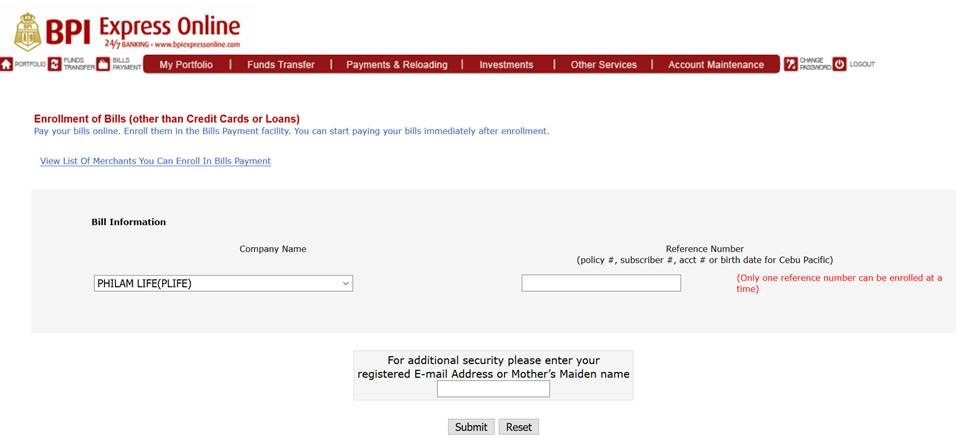
Enrolling your Philam Life Policy to BPI
Expressonline
2.
On the top most menu, choose Payments &
Reloading >>
Bills Payment >>
Enroll All Other Bills
3.
From the list of merchants, pick PHILAM LIFE (PLIFE)
4.
Input your Policy number and Security answer on
the space provided.
5.
Click Submit.
Recently, BPI added another layer of security by adding an
OTP during bills enrollment. Make sure
that your mobile number is updated to receive the 6-digit OTP number.
6.
Click the button ‘Send OTP via SMS …’
7.
Input the OTP number on the space provided and
click Continue.
That’s the 1st part. You’ll receive a notification that your
enrollment is successful and you can now pay your premium.
·
Paying your policy premium
1.
From the top menu choose Payments &
Reloading >>
Pay Bills Today
2.
Choose the PLIFE merchant you’ve enrolled.
3.
Enter the premium amount on the space provided.
4.
Choose which account would be debited for your
payment.
5.
Click Submit.
And you’re done.
You’ve paid your premium on time and with no hassle. A neat trick I do is renaming my bills list
with BPI Expressonline. It makes it
simpler to identify which electric bill, mobile bill or policy number I’m
paying and avoids double payment. To know how, follow this link.
Caveat, this is not a paid post and I’m in no way affiliated
with Philam Life. But, should you have
further questions or comments or would like to know more, hit me up with a
comment and I’ll answer them to the best of my ability.
So you got your sleek BPI EMV Debit Card. It's time to activate it!
You would need you old magnetic strip ATM card in this exercise.
1.
Insert the magnetic strip ATM card
a.
Select your preferred language
b.
Select Other Services
c.
Select PIN Services
d.
Select Activate Debit EMV Card
e.
Key-in your 4-digit PIN
f.
Press NO if you don’t want a
receipt; YES, if you need a receipt
ATM machine will eject the old
magnetic ATM card.
2.
Insert new EMV Debit Mastercard
a.
Select your preferred language
b.
Select Other Services
c.
Select PIN Services
d.
Select Nominate PIN for Debit EMV
Card
e.
Key-in new 6-digit PIN, twice, consecutively
f.
Press NO, if you don’t want a
receipt; YES, if you need a receipt
Your new card will be activated after 24 hours.
Update as of July 16:
For errors and solutions, proceed here.
Photo courtesy of BPI Expressonline
Finally, BPI has decided to join the 21st century and
release their new EMV chip ATM cards, called EMV Debit Card. EMV stands for Europay, Mastercard and Visa, which uses chip card technology and is the global standard for card payments. This is also in
compliance to the Bangko Sentral ng Pilipinas (BSP) mandate that all Philippine
banks are to switch to this new technology for card issuance, ATM and POS
terminals, for the protection of the public.
As such, replacing your current magnetic strip card with this EMV chip
Debit card should be absolutely free.
To get your new EMV Debit Card, follow these simple steps:
1.
Bring the following requirements:
o
Government issued ID*
o
Photo copy of government issued ID
o
Your current BPI ATM card
*On BPI’s website, only 1 ID is
required, however, the teller I talked too asked me to bring 2 valid ID’s, plus
their photocopies.
2.
Know where to claim your card, by
looking at the 1st 3-digits of the number at the back of your
current ATM card.
3.
Consult BPI’s list here, and choose
the area where you opened your account.
For Cavite area, here’s the list:
Branch Code
|
Branch Name
|
Address
|
089
|
Bacoor Panapaan
|
KM 17 E. Aguinaldo Highway, Brgy. Panapaan I, Bacoor,
Cavite 4102
|
095
|
Imus Anabu II
|
KM 24 E. Aguinaldo Highway, Brgy. Anabu II-A, Imus, Cavite
4103
|
096
|
E. Aguinaldo Hi-way
|
KM 30 E. Aguinaldo Highway, Brgy. Zone 4, Dasmariñas, Cavite
4114
|
097
|
Tagaytay
|
BPI Bldg. Brgy. Silang Crossing East, Aguinaldo Highway,
Tagaytay City 4120
|
If your account is under payroll, wait for your HR
department’s advice on when and where to get your EMV Debit Card. Or if you know where you’re card’s branch of
account is, drop by there to get your EMV Debit Card. Don’t forget to bring the same requirements
listed above.
Another option is to ask any BPI branch close to you to
forward your EMV Debit card to that branch.
This may take a little more time and you’ll also need to provide more
information for them to track your card and request a transfer.
As soon as you receive your card, activate it to ensure that it's working properly.