Having your unit listed in other platforms aside from Airbnb
is a good practice. Let’s face it. Not everyone knows Airbnb exists. Most travelers would just turn to google to
find a place to stay. And if they do,
one of the sites that sit atop that search page is Booking.com
Previously, guests from Booking.com are littered with “No
Show Guests.” These are folks whose
travel plans are not yet final but since Booking.com does not require upfront
payment to reserve a unit, nor do they have that ubiquitous “Chat with the
Host” option, guest would just book.
Booking.com also allows guests to pay upon check-in which drives
reservation from their site much higher than with Airbnb. It is all up to the host to contact the
guest, negotiate for a deposit and pray that the guest would at least reply.
Good news though.
Recently, Booking.com revamps their site and made it a
little friendlier for home-sharing hosts.
They now require guests to put in credit card details to make
reservations and provided an option for them to collect the payment from the
guest and transfer it to the host.
Every 15th of the month, Booking.com would
transfer all payments collected from guests that had successfully stayed in
your unit the month prior. All
commissions owed to Booking.com would be deducted and the difference transferred
to the host’s nominated bank account.
Convenient! It’s still not at par
with Airbnb, where you can get your payments promptly, but it’s a start.
To enjoy this benefit, a host would need to activate the
Payment by Booking.com option from their Extranet account. To do so, follow these steps.
1.
Log in to your Extranet account.
2.
From your Home tab, look for the Payments by
Booking.com promotion button, which usually sits on the right side panel and
click the link.
3.
Fill in the details of your bank details where
you wish to receive your payout.
That’s it! You’re done.
Just wait for a confirmation email from Booking.com saying that you’ve
activated the payment facility.
Zoom in on the photo for answers to your questions.
Getting your child a college educational plan with insurance
tie up is a no-brainer decision even in this time of free tertiary
education. Instead of being a restraint
on your budget, doing so would actually help you in managing your finances. Think of it as paying it now while you have
the means and time to do so, as opposed to scrambling in the future when you
already need it. Plus, since the premium
is already on your budget and accounted for, any surplus can be considered as
shopping money.
I got our kid’s plan with Philam Life, as I believe that
they’re the best partner for my family considering what I need and what the
company can provide.
Paying your premiums is very easy especially if you’re an
existing BPI Expressonline user. Make
sure you have your policy number and mobile phone with you, and follow these
easy steps:
·
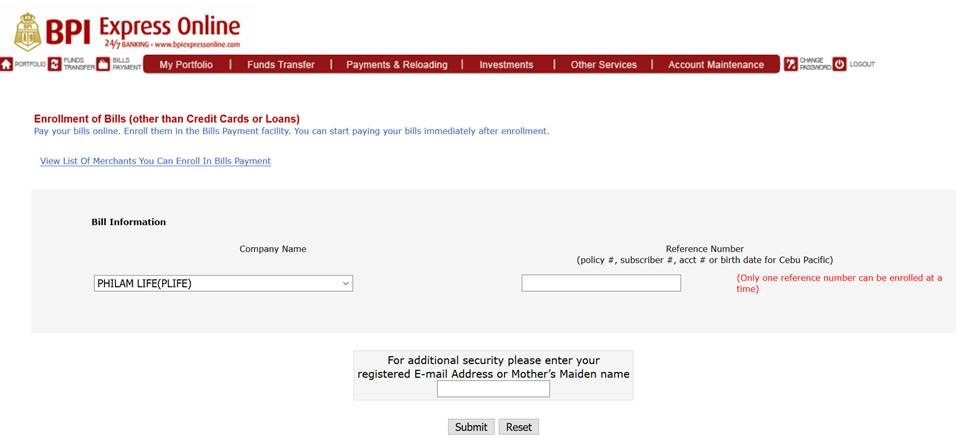
Enrolling your Philam Life Policy to BPI
Expressonline
2.
On the top most menu, choose Payments &
Reloading >>
Bills Payment >>
Enroll All Other Bills
3.
From the list of merchants, pick PHILAM LIFE (PLIFE)
4.
Input your Policy number and Security answer on
the space provided.
5.
Click Submit.
Recently, BPI added another layer of security by adding an
OTP during bills enrollment. Make sure
that your mobile number is updated to receive the 6-digit OTP number.
6.
Click the button ‘Send OTP via SMS …’
7.
Input the OTP number on the space provided and
click Continue.
That’s the 1st part. You’ll receive a notification that your
enrollment is successful and you can now pay your premium.
·
Paying your policy premium
1.
From the top menu choose Payments &
Reloading >>
Pay Bills Today
2.
Choose the PLIFE merchant you’ve enrolled.
3.
Enter the premium amount on the space provided.
4.
Choose which account would be debited for your
payment.
5.
Click Submit.
And you’re done.
You’ve paid your premium on time and with no hassle. A neat trick I do is renaming my bills list
with BPI Expressonline. It makes it
simpler to identify which electric bill, mobile bill or policy number I’m
paying and avoids double payment. To know how, follow this link.
Caveat, this is not a paid post and I’m in no way affiliated
with Philam Life. But, should you have
further questions or comments or would like to know more, hit me up with a
comment and I’ll answer them to the best of my ability.
On September last year, BDO had reduced the withdrawal and
online limit for its ATM Card transactions.
From P50,000 a day, the limit was halved. For those of you that need to withdraw a
larger amount, the easiest way is call up their Customer Care Hotline and
request a limit increase. Its super easy
and best done while inside the bank.
Just approach any BDO teller manning the account opening desk
and request to use their phone to call the BDO Hotline, (02) 631-8000. You can specify the new account limit for
your transaction and how long it would be in place. It could be good for 24
hours or if you need more time, a week even.
However, no matter how high you set the limit, ATM withdrawal is still
capped at P10,000 per transaction, so you’ll just have to be patient and do
your transaction multiple times.
The increase in limit is also instantaneous. You can withdraw the amount you need as soon
as you’ve finished talking with the customer care representative.
I didn’t know this, and I was afraid that I had to wait
hours and hours until I completed my transaction at the bank. My branch of account is known to have
loooooong lines any time, any day.
But a
teller took pity on me and taught me this neat trick. I was customer number B190, and they're serving B78!
Plus, you won’t be charge any withdrawal fee as long as you
transact using a BDO ATM machine.
So you got your sleek BPI EMV Debit Card. It's time to activate it!
You would need you old magnetic strip ATM card in this exercise.
1.
Insert the magnetic strip ATM card
a.
Select your preferred language
b.
Select Other Services
c.
Select PIN Services
d.
Select Activate Debit EMV Card
e.
Key-in your 4-digit PIN
f.
Press NO if you don’t want a
receipt; YES, if you need a receipt
ATM machine will eject the old
magnetic ATM card.
2.
Insert new EMV Debit Mastercard
a.
Select your preferred language
b.
Select Other Services
c.
Select PIN Services
d.
Select Nominate PIN for Debit EMV
Card
e.
Key-in new 6-digit PIN, twice, consecutively
f.
Press NO, if you don’t want a
receipt; YES, if you need a receipt
Your new card will be activated after 24 hours.
Update as of July 16:
For errors and solutions, proceed here.
Photo courtesy of BPI Expressonline
Finally, BPI has decided to join the 21st century and
release their new EMV chip ATM cards, called EMV Debit Card. EMV stands for Europay, Mastercard and Visa, which uses chip card technology and is the global standard for card payments. This is also in
compliance to the Bangko Sentral ng Pilipinas (BSP) mandate that all Philippine
banks are to switch to this new technology for card issuance, ATM and POS
terminals, for the protection of the public.
As such, replacing your current magnetic strip card with this EMV chip
Debit card should be absolutely free.
To get your new EMV Debit Card, follow these simple steps:
1.
Bring the following requirements:
o
Government issued ID*
o
Photo copy of government issued ID
o
Your current BPI ATM card
*On BPI’s website, only 1 ID is
required, however, the teller I talked too asked me to bring 2 valid ID’s, plus
their photocopies.
2.
Know where to claim your card, by
looking at the 1st 3-digits of the number at the back of your
current ATM card.
3.
Consult BPI’s list here, and choose
the area where you opened your account.
For Cavite area, here’s the list:
Branch Code
|
Branch Name
|
Address
|
089
|
Bacoor Panapaan
|
KM 17 E. Aguinaldo Highway, Brgy. Panapaan I, Bacoor,
Cavite 4102
|
095
|
Imus Anabu II
|
KM 24 E. Aguinaldo Highway, Brgy. Anabu II-A, Imus, Cavite
4103
|
096
|
E. Aguinaldo Hi-way
|
KM 30 E. Aguinaldo Highway, Brgy. Zone 4, Dasmariñas, Cavite
4114
|
097
|
Tagaytay
|
BPI Bldg. Brgy. Silang Crossing East, Aguinaldo Highway,
Tagaytay City 4120
|
If your account is under payroll, wait for your HR
department’s advice on when and where to get your EMV Debit Card. Or if you know where you’re card’s branch of
account is, drop by there to get your EMV Debit Card. Don’t forget to bring the same requirements
listed above.
Another option is to ask any BPI branch close to you to
forward your EMV Debit card to that branch.
This may take a little more time and you’ll also need to provide more
information for them to track your card and request a transfer.
As soon as you receive your card, activate it to ensure that it's working properly.
It’s bound to happen in your hosting life that you’d need to call Airbnb and air your grievance. The golden question is always, ‘How do I contact Airbnb, and what’s their number?’.
Getting a hold of an Airbnb customer care is a bit tricky of people not in the US. The first option that I always give to those asking is to contact Airbnb thru their twitter handler @AirbnbHelp. It’s a fast way to getting their attention to your concern and assigning a case manager to your problem.
Airbnb assigns case managers to help hosts solve their problems. Case managers can be community experts, or fellow hosts who have been with Airbnb for so long, they’re masters on getting you the best answer.
If you’re adamant in calling Airbnb, just follow these simple steps.
1. Open your Airbnb app in your mobile
2. Go to your Profile and choose Get help
3. On the bottom of the list, there’s a Contact us button.
4. There’s an option whether to Message Airbnb or Call them. Choose Call us.
6. Now choose Request Callback if you want Airbnb to call you, or Call Airbnb directly. You can nominate the phone number where you’d like Airbnb to contact you.
7. Choosing Call Airbnb directly, would lead to their phone number, +44 203 318 1111
Do you know other ways to contact Airbnb? or you have a different Airbnb contact number? Share it with us here using the Comment Section.
Having access to BPI Expressonline is such a big convenience, as they have a wide range of online banking service to makes bills payment a little easier.
Here's a step by step guide on how to enroll and pay your PLDT bills using BPI Expressonline.
Enrolling your PLDT bill
2.
From the top menu, go to Payments &
Reloading > Bills Payment > Enroll All Other Bills.
3.
Fill in the details needed.
a.
ATM Card number – choose from the drop down menu
b.
Joint Account Indicator (JAI) No. – this is the
2-digit number located at the lower right hand corner of your ATM card
c.
Bill Information – choose PHIL LONG DISTANCE TEL
CO (PLDT)
d.
Account number – this is the n10-digit your
account number that you can get either from your printed bill or from
my.pldthome account. Notice that there
are only 9-digits there, so you’d need to add a 0 as the 1st number.
e.
Enter your security details, such as registered
e-mail address or your Mother’s maiden name.
f.
Hit Submit.
4.
You’ll receive a confirmation of your enrollment
and can now proceed with payment.
5.
Alternately, you can also enroll your bill from
the payment page by clicking the Enroll Bills link. A pop up will open,
where you'll be asked what type of bill you'll be enrolling. Choose
Utility, Insurance and Other Bills.
Paying your PLDT Bill
1.
To pay, go to Payments & Reloading >
Bills Payment > Pay Bills Today
2.
Fill in the details
a.
Pay – list of merchants enrolled to your account
b.
The amount of – payment amount
c.
From my account – list of accounts where payment
would be debited
d.
Additional Reference Number – for PLDT, leave
this blank
e.
Remarks – type any information that you wish to
put here as reminder, or leave it blank
f.
Hit Submit.
3.
You’ll receive a confirmation of your successful
transaction in the page and also to your registered e-mail.